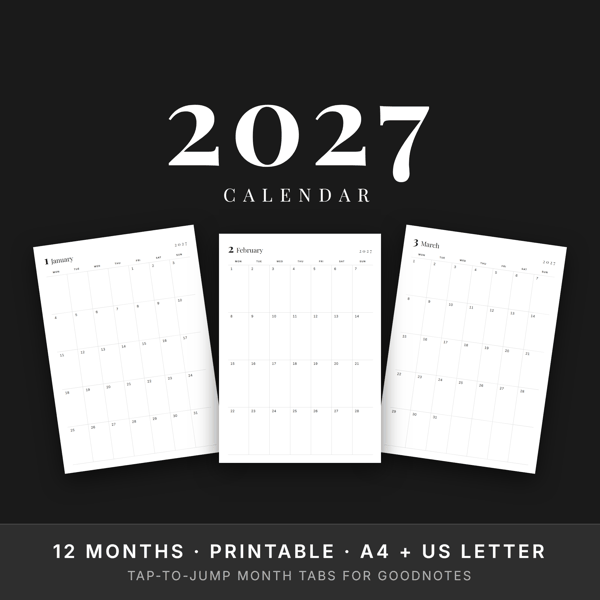
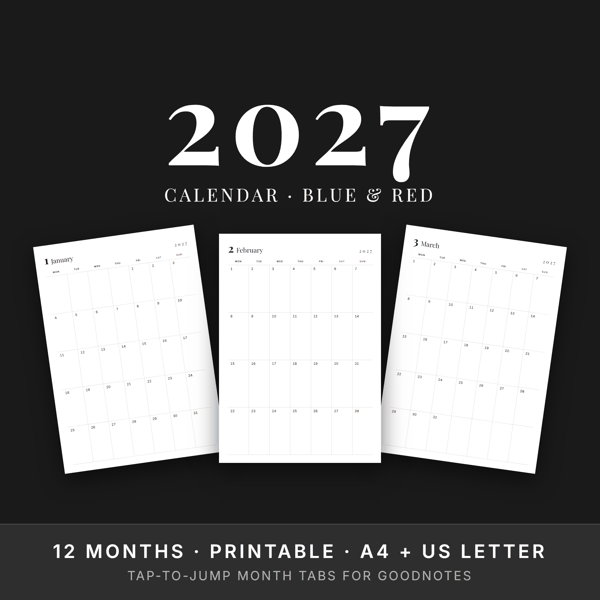
Short answer: download the PDF to your iPad, import it in GoodNotes with + → Import, then turn on read-only mode and tap a month tab to jump to that month.
What the iPad version is
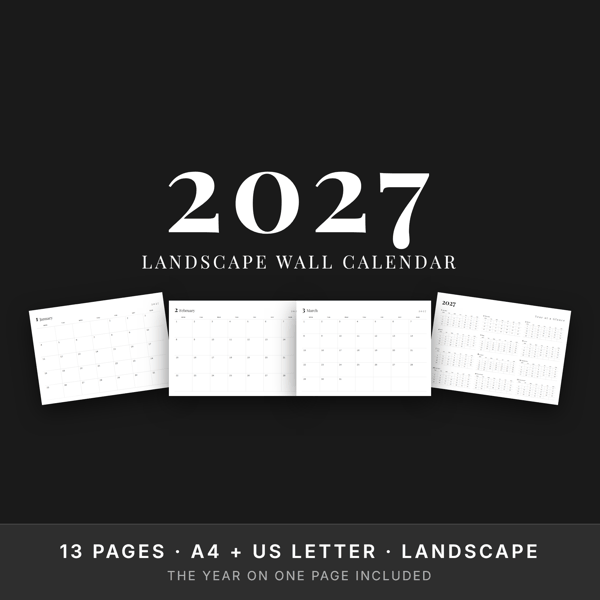
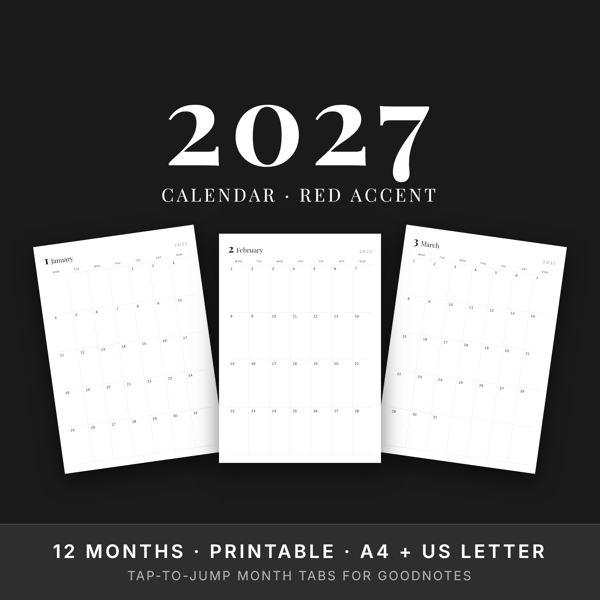
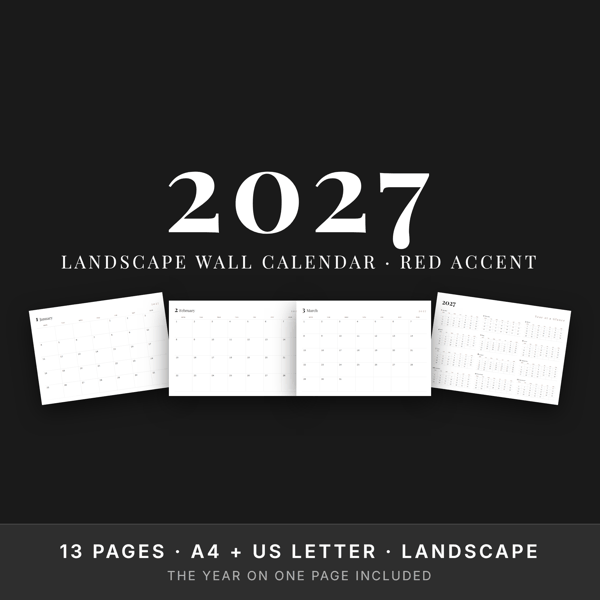
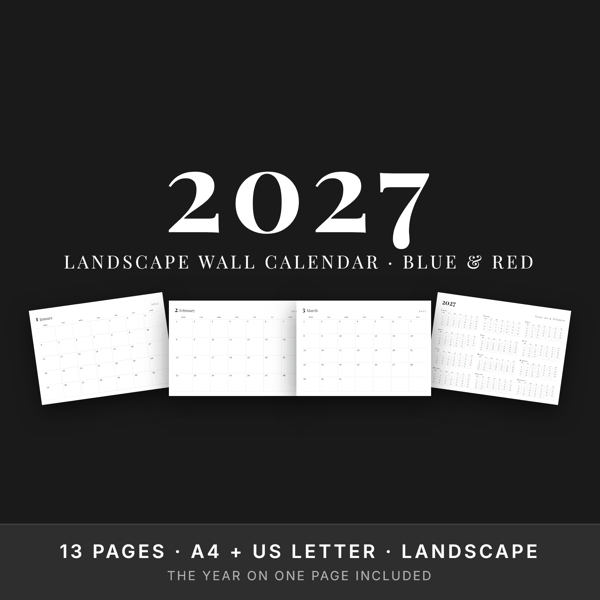
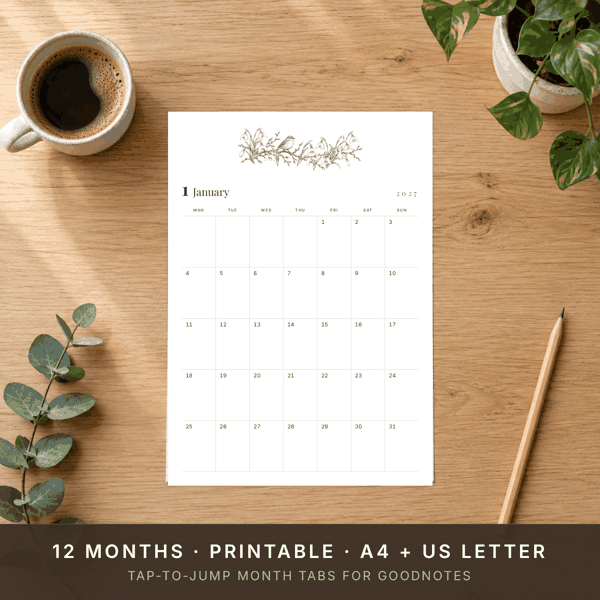
Our monthly and landscape calendars come with a version made for iPad note apps. Along the top of every page is a row of month tabs - touch one and you land on that month. The links live inside the PDF itself, so they work offline and nothing needs to be installed.
The same download also has the printable files in A4 and US Letter, so you can keep a paper copy on the wall and a digital one on your iPad.
1. Save the PDF to your iPad
Open the download link from your receipt on the iPad itself and save the file to the Files app. If you bought on a computer, send the file to the iPad with AirDrop or put it in iCloud Drive.
2. Import it into GoodNotes
- Open GoodNotes and go to the home screen where your notebooks are.
- Tap the + button, then Import.
- The Files app opens. Find the calendar PDF and tap it.
It opens as a notebook you can write on with your Apple Pencil.
3. Use the month tabs
While you are writing, a tap on a tab just makes a mark - GoodNotes thinks you are drawing. There are two ways to follow a link:
- Read-only mode: tap the read-only icon (a crossed-out pencil, top right), then tap any tab to jump straight there.
- While writing: press and hold a tab, then choose Open Link.
Common questions
The tabs do nothing when I tap them.
You are probably in pen mode. Switch to read-only mode, or press and hold the tab and choose Open Link.
Does it work on Android or Windows?
The GoodNotes apps for Android and Windows do not follow links in imported PDFs yet, so the tabs will not jump there. The pages themselves still open and you can write on them.
How do I start again with a clean copy?
Keep the original PDF in the Files app. Import it again whenever you want a fresh, empty calendar.